
ADA and the Web: A Guide to Built-in Browser Accessibility Tools
Updated: Jan 29
While web developers bear the responsibility for building Americans with Disabilities Act compliant websites, business websites should make visitors aware that modern web browsers—Chrome, Firefox, Edge, and Safari—come equipped with a suite of robust accessibility features designed to customize the browsing experience. These tools are often tucked away in settings menus, and can expand the reach of any website.
Whether a business' website visitor has a permanent disability, a temporary injury, or simply wants a more comfortable reading experience, their browser has tools ready to help. This post explores the essential accessibility features available right now on the platform you already use every day.
Visual Adjustments: Seeing the Web
For users with visual impairments, the standard presentation of a website is often difficult to interpret. Browsers offer several ways to manipulate text and layout without breaking the functionality of the site.
Full Zoom vs. Text Scaling
The most immediate tool at your disposal is the zoom function. By pressing Ctrl and + (or Cmd and + on Mac), you can magnify the entire page. This increases the size of images, buttons, and text simultaneously. All modern browsers support reflow, meaning the content should rearrange itself to fit the window so you don't have to scroll horizontally.
However, sometimes you only want to increase the text size without distorting images. Browsers like Firefox allow you to select "Zoom Text Only" in the view settings. This keeps the layout structure intact while making articles and posts significantly easier to read.
Reader Views
One of the most underutilized accessibility tools is Reader View (sometimes called Immersive Reader). When available on a page, an icon resembling a book or a document appears in the address bar.
Clicking this strips away navigation bars, advertisements, and sidebar clutter. You are left with clean, high-contrast text and relevant images. This feature is vital for users with low vision, but it is also a game-changer for individuals with ADHD or dyslexia, as it removes distractions that compete for attention. Inside Reader View, you can often customize the background color, font, and spacing to suit your specific needs.
Keyboard Navigation and Caret Browsing
Not everyone uses a mouse. Many users rely on keyboards or specialized switch devices to navigate the web. Browsers have standardized how this works, ensuring that the internet remains navigable without a cursor.
The Power of the Tab Key
The Tab key is the primary navigation tool for keyboard users. Pressing it moves the "focus" from one interactive element to the next—links, buttons, and form fields.
Browsers are designed to show a visual indicator, usually a colored outline, around the element that is currently focused. This allows users to know exactly where they are on the page. If you want to move backward, Shift + Tab reverses the direction. To "click" a link or button, you simply press Enter.
Caret Browsing
For more granular control, browsers offer Caret Browsing. By pressing F7, a movable cursor (the caret) appears within the text of the webpage, similar to what you see in a word processor like Microsoft Word.
This allows you to select text using the keyboard (Shift + Arrows) and navigate through long articles line by line. It provides a level of precision that standard scrolling cannot offer, bridging the gap between simply viewing a page and interacting with its content.
Color and High Contrast Modes
Standard web designs often favor subtle aesthetics, like light gray text on a white background. While stylish, this lacks sufficient contrast for many users.
High Contrast Support
Most operating systems (Windows and macOS) have high contrast modes that invert colors or reduce the palette to neon-on-black combinations. Modern browsers respect these system-level settings. When you activate high contrast on your computer, Chrome, Edge, and Firefox will automatically attempt to render webpages using your chosen color scheme.
Dark Mode
Dark mode has moved from a developer niche to a mainstream preference. Beyond saving battery life, it significantly reduces eye strain and is essential for users with photophobia (light sensitivity). Most browsers now have a setting to force dark mode on websites, even those that don't natively support it. This creates a darker background with lighter text, reducing the glare emitted by the screen.
Auditory Assistance and Captions
The internet is increasingly multimedia-heavy. Browsers have adapted by including tools that help users who are hard of hearing, as well as those who prefer to listen to text rather than read it.
Live Captions
Google Chrome introduced a groundbreaking feature called Live Caption. When enabled in the accessibility settings, the browser automatically generates real-time captions for any audio playing in the browser. This works for YouTube videos, podcasts, and even social media clips that might not have their own subtitles.
The processing happens locally on your device, ensuring privacy. This feature is indispensable for Deaf or hard-of-hearing users when encountering uncaptioned content, which unfortunately remains common on the web.
Read Aloud Functionality
While screen readers like NVDA and JAWS are powerful, dedicated software for blind users, browsers are integrating their own lighter versions of text-to-speech. Microsoft Edge is particularly notable for its "Read Aloud" feature.
With a simple click, the browser reads the text of a webpage using surprisingly natural-sounding voices. You can adjust the speed and choose different voice profiles. This benefits users with vision impairments, but it is also an excellent tool for auditory learners or those with literacy challenges who comprehend information better when it is spoken.
Reducing Motion and Cognitive Load
Modern web design loves animation. Parallax scrolling, auto-playing videos, and whizzing transitions can cause motion sickness or vestibular disorders for some users.
Browsers now respect a system setting called "Reduce Motion." If you enable this in your computer's accessibility preferences, the browser signals the website to turn off non-essential animations. Instead of a menu swooping in from the side, it will simply appear. This creates a calmer, more stable browsing environment that is less likely to trigger dizziness or migraines.
Frequently Asked Questions
Do I need to install extensions to get these features?
No. All the features discussed in this article—zoom, reader mode, tab navigation, and live captions—are built directly into the browser. However, extensions can provide additional, specialized functionality if the native tools aren't enough.
Are these features available on mobile browsers?
Yes, but they may look different. Mobile browsers on iOS and Android have accessibility settings for text scaling and simplified views. They also rely heavily on the phone's operating system accessibility tools, such as VoiceOver (iOS) or TalkBack (Android).
Does using accessibility features affect how websites load?
Generally, no. Features like high contrast mode or font scaling simply change how the browser "paints" the page for you. They do not typically slow down the connection speed. However, some heavy "force dark mode" settings might take a split second to apply as the page renders.
Taking Control of Your Digital Experience
The web was designed to be universal, but design choices often create accidental exclusions. By mastering the accessibility settings in your browser, you stop relying solely on web designers to get it right. You take ownership of your digital environment.
Whether it is toggling on Live Captions for a video or using Reader View to focus on a long article, these tools exist to make the internet work for you. Take a few minutes today to explore the settings menu of your favorite browser.





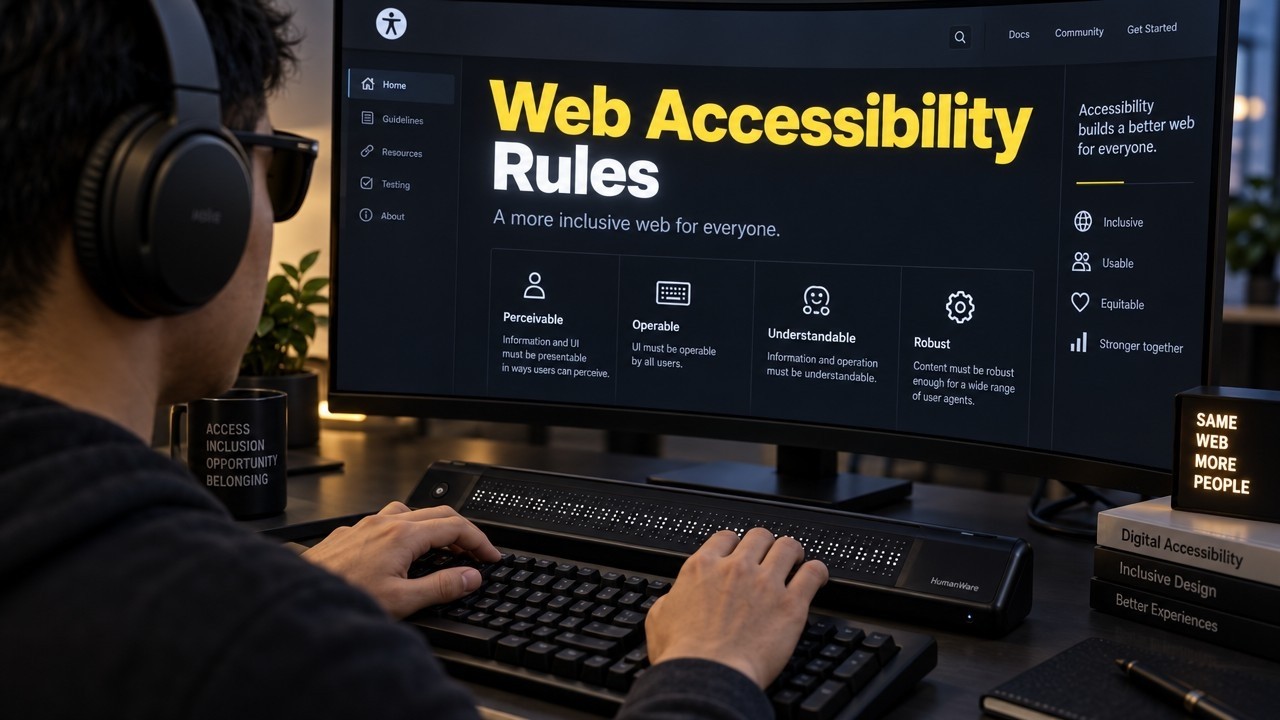














Features like Reader View and Live Captions are often hidden in settings but can make a significant difference for people with visual or auditory needs. For those exploring additional assistive technology or software solutions, it's helpful to have reliable customer support resources available. You can look up the Toggle https://www.pissedconsumer.com/company/toggle/customer-service.html for assistance with their specific software products. Familiarizing yourself with both browser tools and third-party support options can create a more accessible digital environment.